9 Jan 2026
Post by Fiona
Introduction
Connecting an Anker Bluetooth speaker can be a seamless experience when you’re familiar with the steps involved. Whether you want to enhance your music, podcasts, or movie sessions, a proper connection ensures optimal audio quality. Anker has built a strong reputation for delivering reliable audio products. Thus, mastering the connection process can greatly enhance your listening experience. This guide aims to provide detailed instructions and troubleshooting advice for successful connectivity.
Understanding Anker Bluetooth Speakers
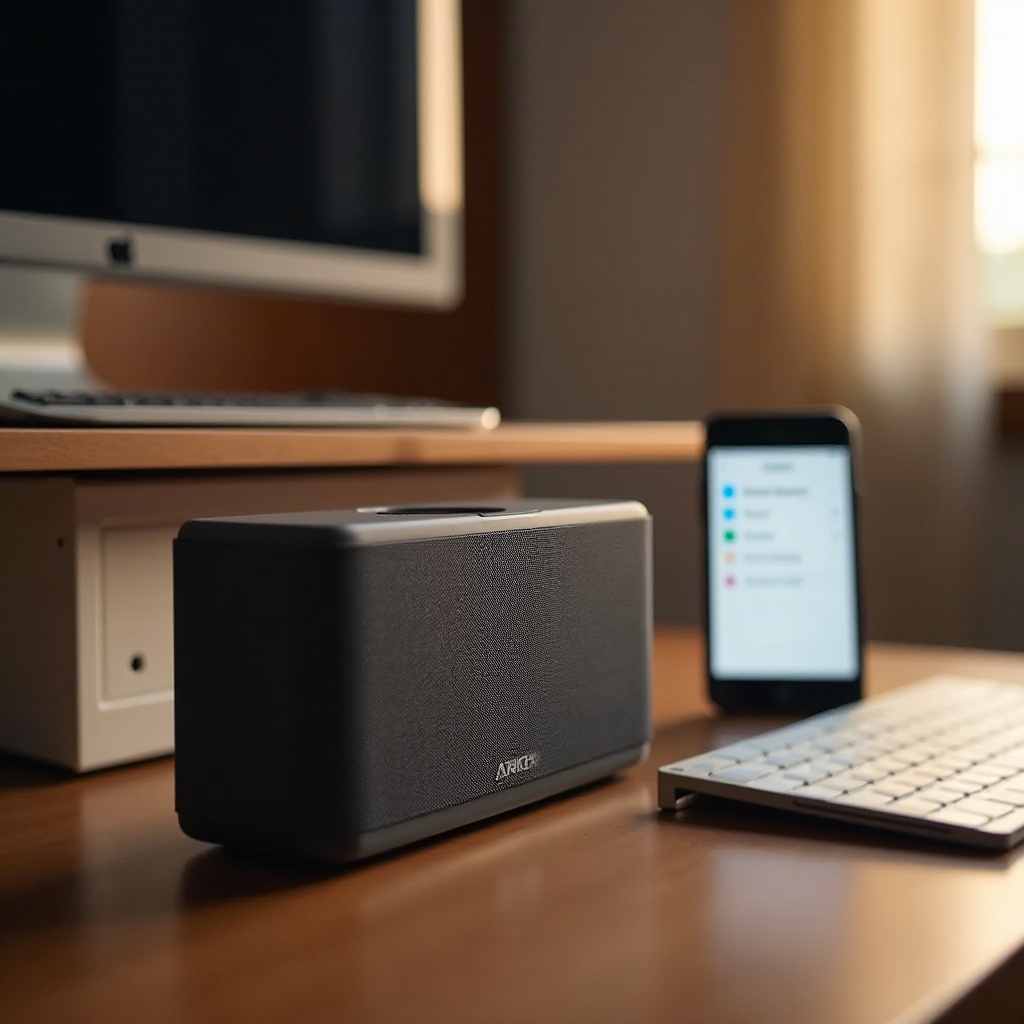
Anker’s Bluetooth speakers are renowned for their exceptional sound quality, robust construction, and user-friendly features.
-
Key Features of Anker Bluetooth Speakers: These speakers offer long-lasting battery life, portability, and excellent Bluetooth connectivity, making them perfect for various settings.
-
Popular Anker Models for 2024: Among the most sought-after models this year are the Anker Soundcore Motion+, Soundcore Flare 2, and the Soundcore Mini 3 Pro. Each model boasts unique features tailored to different audio needs.
Familiarity with these features and models will assist in optimizing the setup and connection of your device.
Step-by-Step Guide to Connecting Your Anker Bluetooth Speaker
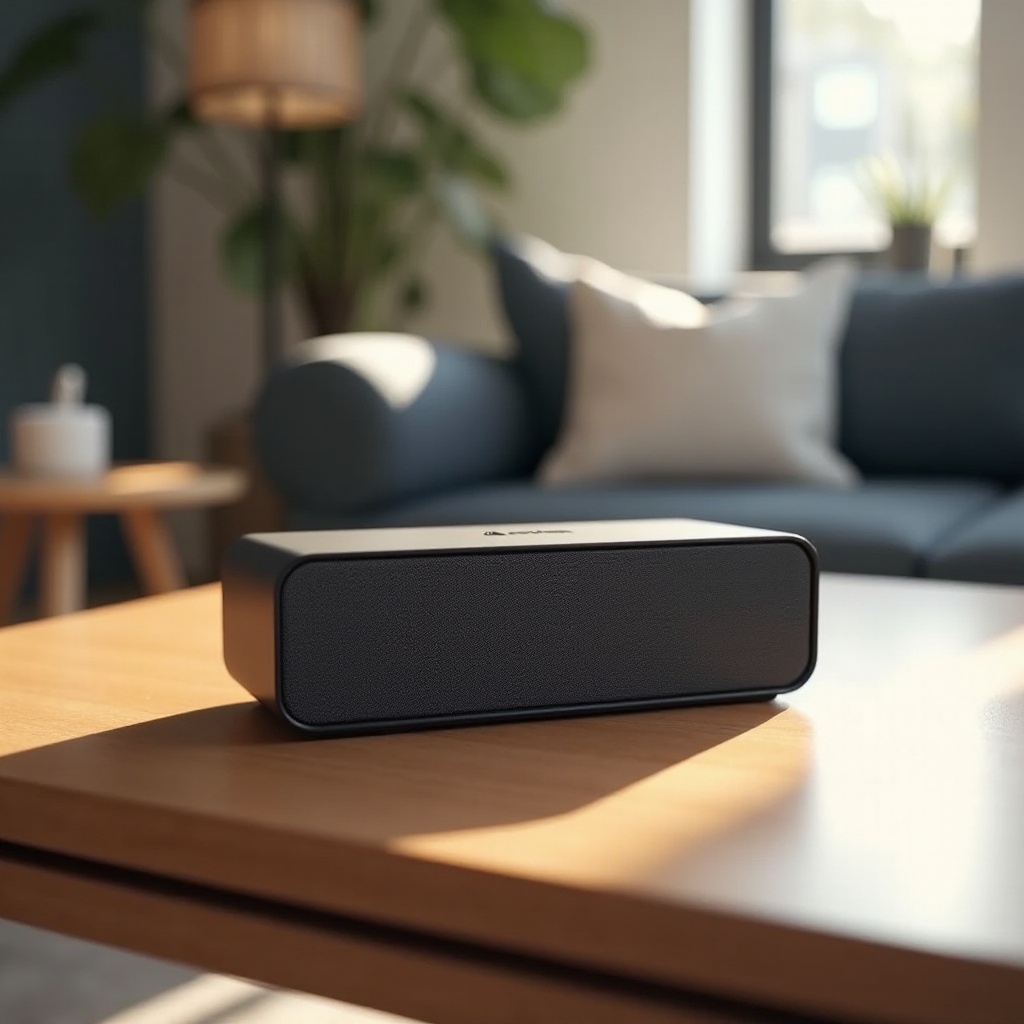
To establish a smooth connection, follow these detailed steps:
-
Preparing Your Speaker and Device: Charge your Anker speaker fully. Turn on Bluetooth on your device, whether it’s a smartphone, tablet, or computer.
-
Establishing a Bluetooth Connection:
- Power on your Anker speaker.
- Activate Bluetooth pairing mode by pressing the Bluetooth button until you see a blinking light.
- On your device, navigate to Bluetooth settings and search for available devices.
-
Choose your Anker speaker from the list. A confirmation tone from the speaker will indicate that a connection has been established.
-
Troubleshooting Initial Connection Problems: If you encounter issues:
- Verify that Bluetooth is on.
- Ensure the devices are within range of each other.
- Restart both the speaker and your device and repeat the process.
These steps lay the foundation for a successful initial connection with your Anker speaker.
Advanced Connectivity Tips
Enhance your Bluetooth experience with these techniques:
- Pairing with Multiple Devices: Many Anker speakers support multiple device connections for added convenience.
- Disconnect from any current device and pair with a new one using the established steps.
-
Some models seamlessly switch between devices via Bluetooth settings adjustments.
-
Using NFC for Quick Pairing: If compatible, NFC can simplify the pairing process:
- Activate NFC on your device.
- Tap your device against the NFC tag on the speaker.
-
Follow on-screen prompts to complete the setup.
-
Maintaining a Stable Connection: To prevent disruptions, minimize the distance and remove obstacles between your speaker and device. Regular software updates also help maintain stability.
These advanced tips ensure better user interaction and uninterrupted audio enjoyment.
Common Connection Issues and Solutions
Despite technological advancements, connection problems might occur. Here’s how to resolve common issues:
-
Signal Interference Solutions: Bluetooth signals might face disruptions from other devices. To minimize interference, keep your speaker away from Wi-Fi routers and microwaves.
-
Firmware and Software Updates: Periodically update the speaker’s firmware and your device’s software to improve compatibility and fix known bugs.
-
Resolving Compatibility Issues: Older devices may struggle with newer Bluetooth versions. Check if updating the Bluetooth version is possible for smoother connectivity.
Resolving these issues guarantees a smooth and hassle-free audio experience.
Best Practices for Optimal Performance
After establishing a connection, consider these practices to enhance speaker performance:
-
Battery Management Tips: For continuous playtime, ensure a full charge and make use of available power-saving features.
-
Using Your Speaker in Different Environments: Adapt volume and placement based on your setting, whether indoors or outdoors, for superior sound quality.
These practices ensure you make the most of your Anker Bluetooth speaker.
Conclusion
Mastering how to connect your Anker Bluetooth speaker can enhance your audio experience significantly. By following these steps, exploring advanced options, troubleshooting common issues, and applying best practices, you’ll enjoy a seamless and immersive sound experience with your Anker speaker.
Frequently Asked Questions
Why won’t my Anker Bluetooth speaker connect to my phone?
Ensure Bluetooth is enabled on both devices and they are in range. Restart both devices and try connecting again.
How can I connect multiple devices to my Anker speaker?
Most Anker speakers can remember multiple devices. Simply pair them one at a time and select the required device from Bluetooth settings.
What should I do if my speaker keeps disconnecting?
Check for interference, ensure your device’s software is up to date, and ensure the distance between the speaker and device is minimal.