5 Jun 2026
Post by Fiona
Introduction
Being able to manually move the ink cartridge in your HP printer can be a lifesaver when troubleshooting issues or performing maintenance. Whether you’re dealing with a jam or simply need to reset your printer’s cartridge, following the correct procedure is essential. This guide provides detailed steps and important considerations to help you safely and efficiently adjust the ink cartridge. By the end, you’ll be equipped to tackle these common printer challenges with ease.
Understanding Your HP Printer Model
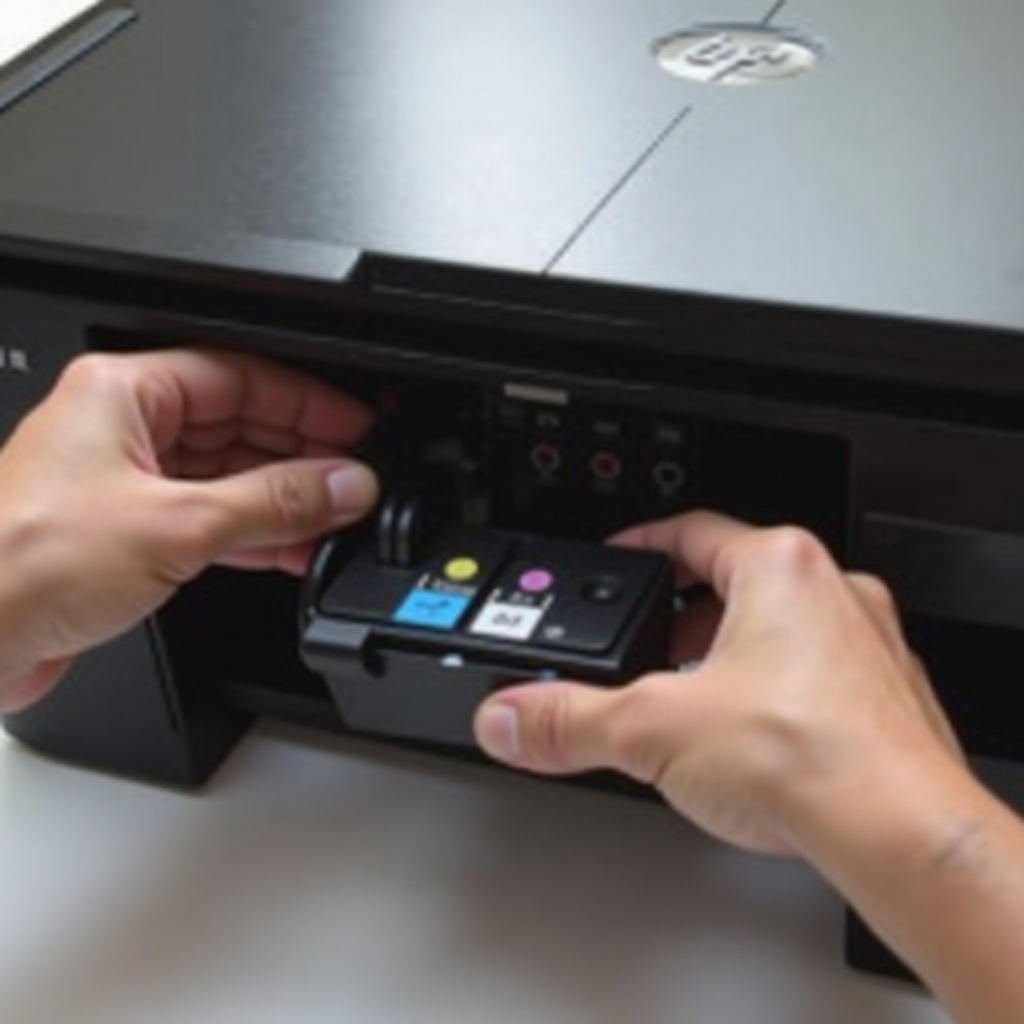
Before you begin, identifying your specific HP printer model is crucial. Different models possess unique features and mechanisms, affecting how you should handle the cartridge. Consult your printer’s manual or visit the HP website for detailed specifications. By knowing your model, you can ensure that you’re following instructions that match your printer’s requirements, paving the way for a successful manual adjustment.
Why Manual Movement May Be Necessary
Manual movement of the ink cartridge can address numerous printer issues. For example, you might face cartridge jams or alignment alerts, where manual intervention becomes necessary. Not only can manual movement fix these common problems, but it can also enhance your printer’s overall functionality over time. Frequent manual adjustments can also extend the lifespan of your printer and improve its print quality. Recognizing these benefits sets the stage for the step-by-step guide.
Preparation Steps for Manual Movement
Proper preparation is key before you start moving the ink cartridge. Here are some steps to ensure a smooth process:
- Turn off your printer completely.
- Unplug it from the power outlet to avoid any risks of electrical hazards.
- Gather necessary tools such as a flashlight for visibility and a dry cloth for cleaning any ink spills.
- Review the user manual for model-specific instructions and warnings.
- Set up a clean, well-lit workspace free from any potential hazards.
By laying this groundwork, you reduce the risk of errors and are ready to move the cartridge safely.
Step-by-Step Guide to Manually Moving the Ink Cartridge
To manually move the ink cartridge in your HP printer, follow these steps:
- Power Off and Unplug: Ensure your printer is completely powered off and disconnected from any electrical sources.
- Open the Printer Cover: Carefully lift or open the printer cover. The cover’s location and mechanism depend on your specific model.
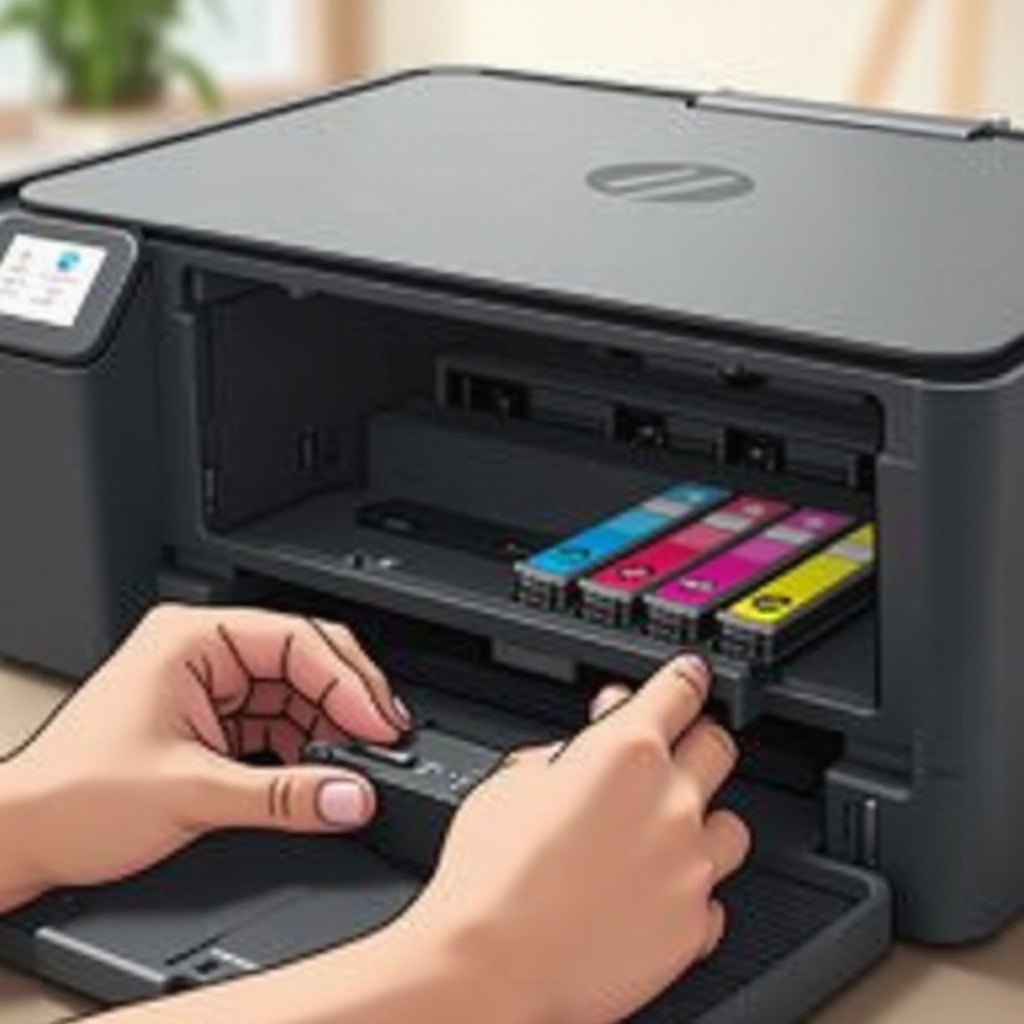
- Locate the Ink Cartridge Access Area: Identify the area inside the printer where the ink cartridges reside.
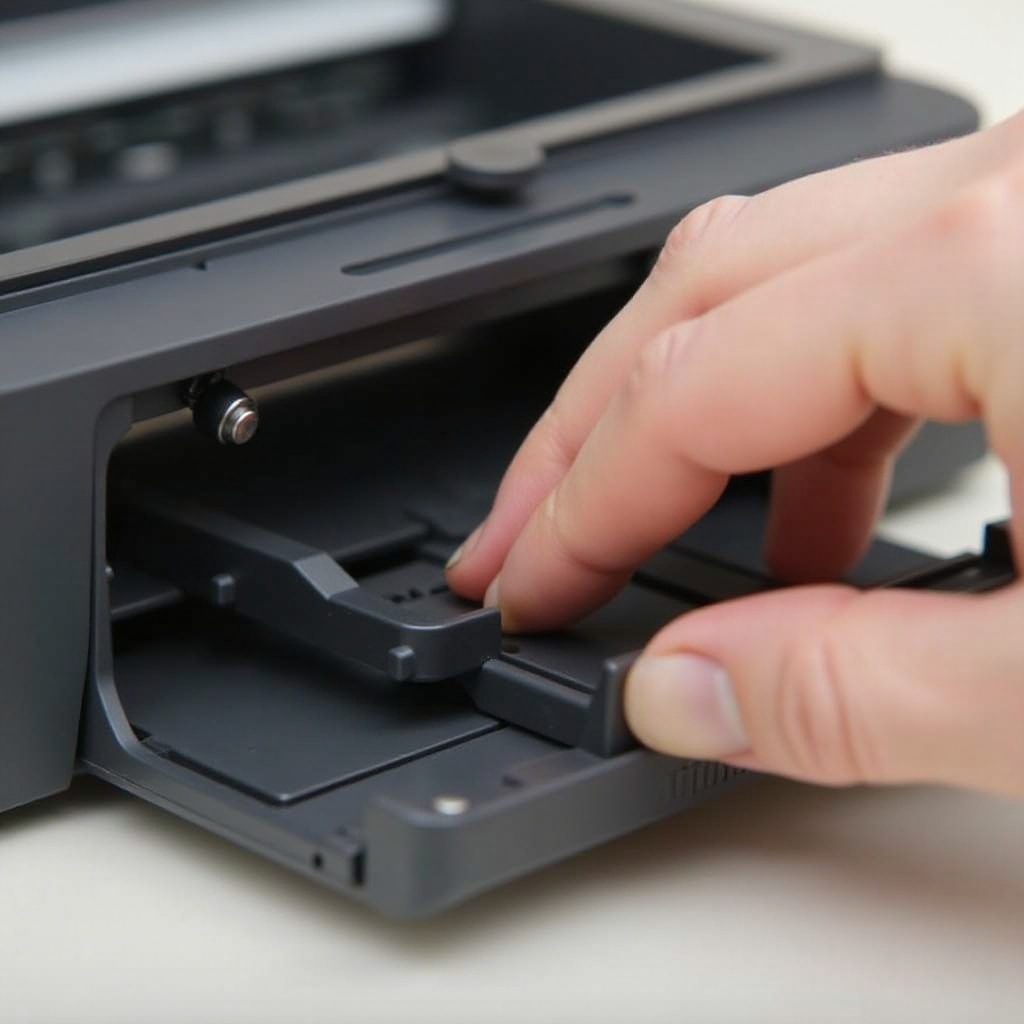
- Adjust the Cartridge: Gently slide the cartridge left or right as necessary. Be careful not to apply too much force to prevent damage.
- Check Cartridge Alignment: Ensure the cartridge is properly aligned along the specified path.
- Secure and Close: After adjustments, close the printer cover securely.
These detailed steps aim to guide you through the manual movement process, ensuring safety and effectiveness.
Troubleshooting Errors
If you encounter issues during the process, here are common problems and their solutions:
- Cartridge Won’t Move: Check for obstructions like paper debris. Removing them usually solves immobility issues.
- Misalignment Errors: In case of misalignment, review the steps and ensure you’re following them precisely.
- Persistent Error Messages: If error messages continue to appear, restart the printer and check all connections. Consult a professional if issues persist.
Following these troubleshooting tips can help resolve any hiccups and ensure your printer is operational.
Best Practices for Cartridge Management
Maintain your printer’s cartridges with these best practices:
- Regularly align the cartridge to keep printing accurate.
- Handle cartridges carefully to avoid physical damage.
- Clean the cartridge carriage with a dry cloth to remove ink residue.
Adhering to these practices will help maintain your printer’s health, ensuring consistent performance and long life.
Conclusion
Navigating the manual movement of ink cartridges in an HP printer is straightforward when you know the steps. Always refer to your printer’s manual for any specific instructions, and don’t hesitate to seek professional help if needed. Equipped with these techniques, you can confidently manage printer issues, ensuring efficient and lasting performance.
Frequently Asked Questions
What should I do if I cannot manually move the cartridge?
Check for obstructions or ensure the printer is powered off correctly. Persistent issues may require professional repair.
How often should I check my HP printer for cartridge issues?
Inspect your printer for alignment and debris monthly to ensure optimal performance and longevity.
Can manual movement damage my printer if done incorrectly?
Improper movement can damage components. Follow guidelines carefully and handle parts gently to avoid issues.